Tutorials
Getting Started with Analytics: A Complete Beginner's Guide
New to Karsilo? This comprehensive guide walks you through connecting your first Stripe account and understanding your analytics dashboard.


Getting Started with Analytics
Welcome to Karsilo! If you're new to our platform, this guide will walk you through everything you need to know to start tracking your revenue like a pro.
Step 1: Creating Your Account
First things first – let's get you set up. Head over to our sign-up page and create your account. You can sign up with:
- Email and password
- Google OAuth (recommended for faster access)
Pro tip: Use the same email associated with your Stripe account for easier management.
Step 2: Connecting Your First Stripe Account
Once you're logged in, you'll see the dashboard with a prompt to connect your first Stripe account.
The Connection Process
- Click "Connect Stripe Account"
- You'll be redirected to Stripe's secure OAuth page
- Log in to your Stripe account (if not already logged in)
- Review the permissions and click "Connect"
- You'll be redirected back to Karsilo
The entire process takes about 30 seconds, and your data will start syncing immediately.
What Data We Access
Karsilo only requests read-only access to:
- Transaction data
- Customer information
- Subscription details
- Invoice history
We never have access to your Stripe API keys or the ability to make changes to your account.
Step 3: Understanding Your Dashboard
After connecting your account, you'll see your main dashboard. Let's break down what you're looking at.
The Overview Section
At the top, you'll find your key metrics:
- Total Revenue: Your all-time revenue across connected accounts
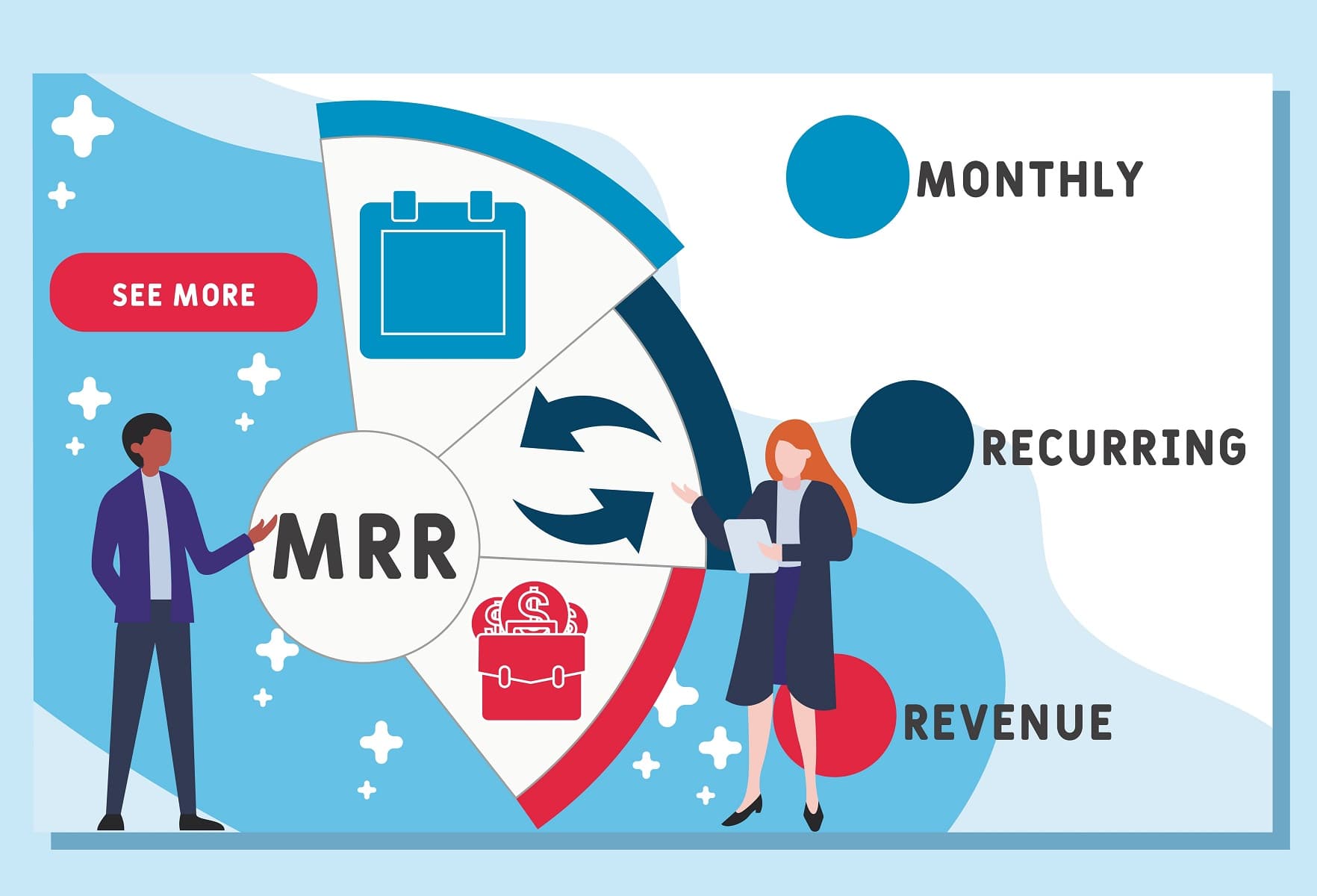
- MRR: Monthly Recurring Revenue
- Active Customers: Currently paying customers
- Growth Rate: Month-over-month growth percentage
The Revenue Chart
The main chart shows your revenue over time. You can:
- Switch between daily, weekly, and monthly views
- Filter by specific accounts
- Hover over data points for detailed information
Recent Transactions
Below the chart, you'll find a live feed of recent transactions, showing:
- Customer name and email
- Amount and currency
- Transaction type (charge, refund, subscription)
- Timestamp
Step 4: Exploring Advanced Features
Once you're comfortable with the basics, explore these powerful features:
Custom Date Ranges
Click the date picker to analyze any time period. Common presets include:
- Last 7 days
- Last 30 days
- Last quarter
- Year to date
Multi-Account Views
If you've connected multiple Stripe accounts, use the account selector to:
- View individual account metrics
- Compare accounts side by side
- See combined totals
Export Options
Need your data elsewhere? Export to:
- CSV for spreadsheets
- PDF for reports
- JSON for developers
Common Questions
How often does data sync?
Data syncs every 5 minutes automatically. You can also trigger a manual sync from the settings page.
Is my data secure?
Absolutely. We use bank-level encryption and never store your Stripe credentials. All connections use OAuth 2.0.
Can I disconnect an account?
Yes, you can disconnect any account at any time from Settings > Connected Accounts.
Next Steps
Now that you're set up, here are some recommended next steps:
- Connect additional accounts if you have them
- Set up email reports to get daily or weekly summaries
- Explore the settings to customize your experience
- Join our Discord to connect with other users
Happy tracking!